IDE configuration
The Oidis Framework is IDE-agnostic because it only provides the command line interface. Any project can be edited in the text editor and built by executing the appropriate scripts. But why not use a fancy IDE?
JetBrains family (mainly IntelliJ IDEA and CLion) was chosen as the preferred IDE, and the configuration files for this IDE are also included in each project.
IntelliJ markdown.IDEA configuration
External tools
Go to File→Settings… (Ctrl+Alt+S) →External Tools and specify the new tools with this configuration:
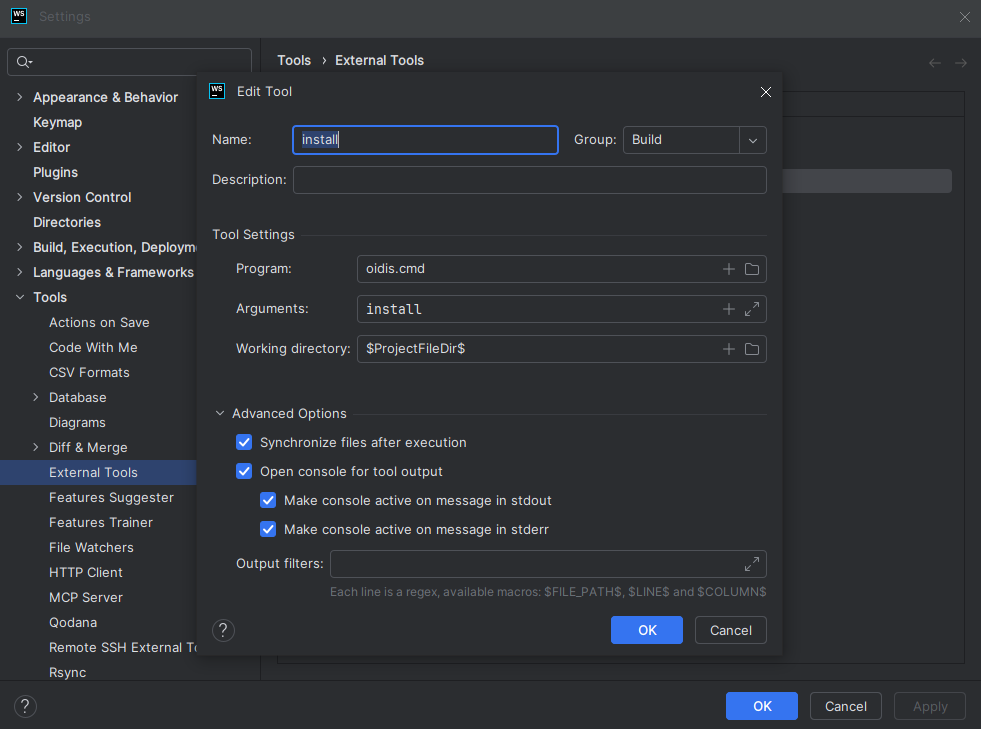
Each configuration is using program oidis.cmd or oidis.sh and working directory $ProjectFileDir$, see a list of program args below.
Build
| Command | Description |
|---|---|
install | Install |
build dev | Build - dev |
rebuild-dev | Rebuild - dev |
build eap | Build - EAP |
rebuild-eap | Rebuild - EAP |
Deploy
Not needed for regular user.
| Command | Description |
|---|---|
target-deploy | Deploy package |
config-deploy --file=$FilePathRelativeToProjectRoot$ | Deploy configuration |
Testing
| Command | Description |
|---|---|
test unit | Unit test |
test unit --file=$FilePathRelativeToSourcepath$ | Single Unit test |
test coverage | Coverage test |
test coverage --file=$FilePathRelativeToSourcepath$ | Single Coverage test |
test lint | Test lint |
Utils
| Command | Description |
|---|---|
project-cleanup | Clean up |
Plugins
Go to File→Settings… (Ctrl+Alt+S) →Plugins→Browse repositories... to choose and install the required plugin.
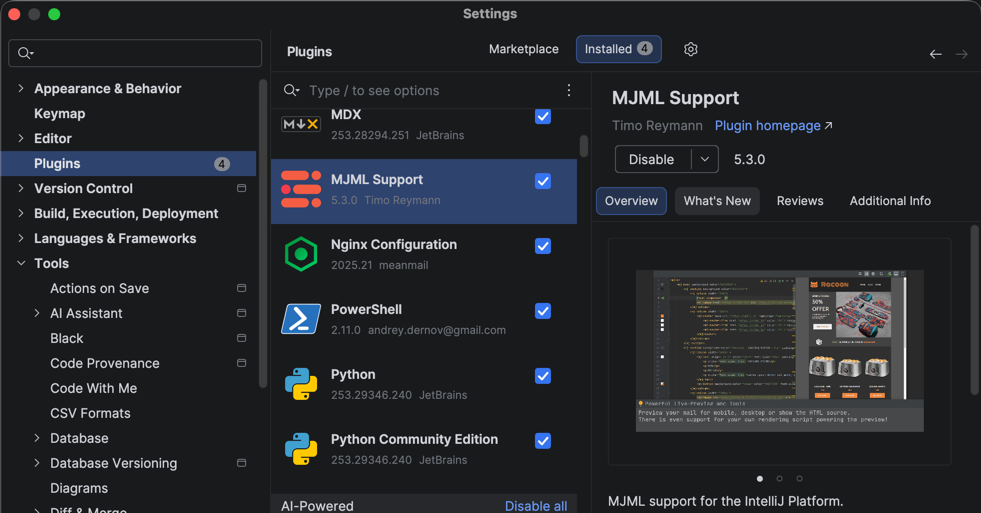
Useful
-
Identifier Highlighter Reloaded
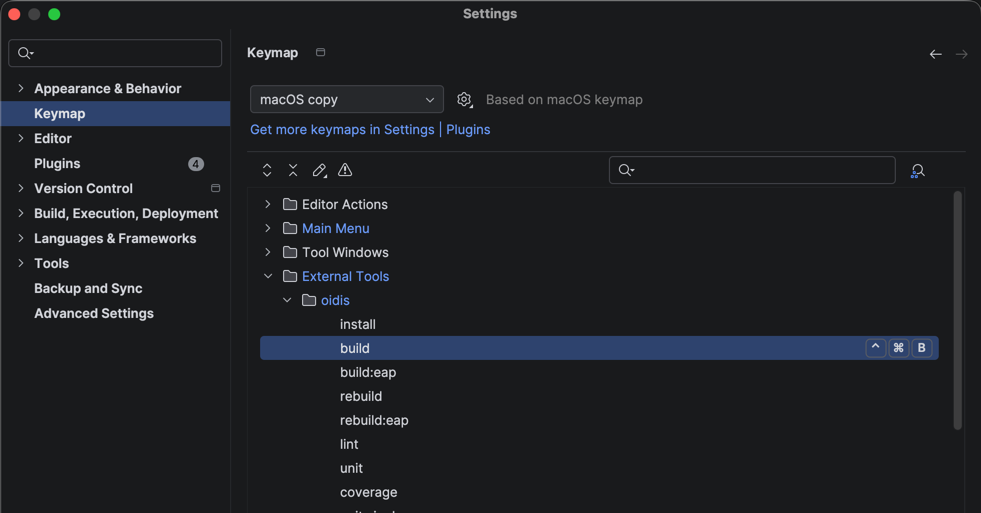
Replace Alt+Up and Alt+Down at Keymap settings
Keymap
-
Oidis Build
F5
-
Oidis Rebuild
Shift + F5
Code style
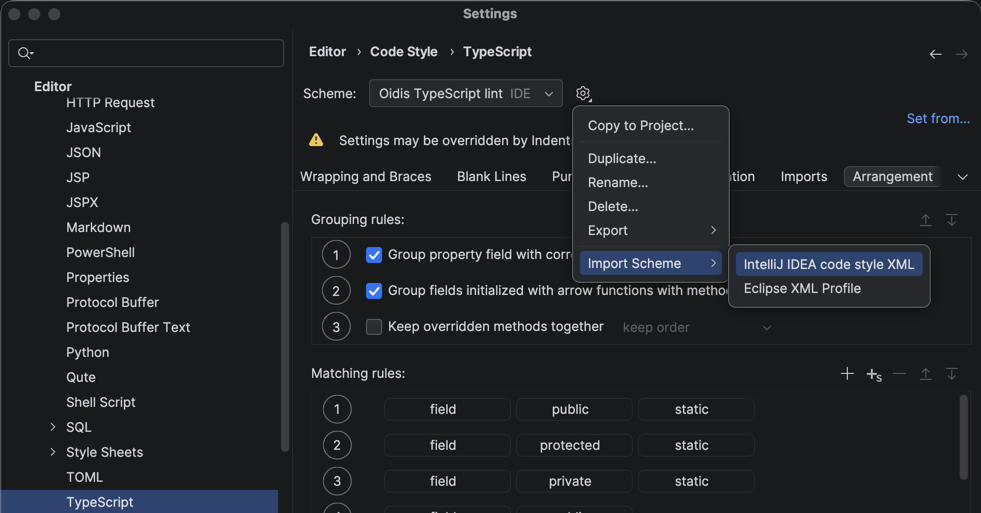
The Oidis Framework requires the validation of the code style (linting). By default, IntelliJ IDEA uses a different configuration for the TypeScript than what is expected by the standard linting tools. To meet the required code style, the TypeScript configuration file was exported.
To import the configuration file, go to File→Settings… (Ctrl+Alt+S) →Editor→Code Style→TypeScript→Manage...→Import...→IntelliJ IDEA code style XML, and select the downloaded code style or .→Code Style→C/C++→. For CLion IDE. Happy coding :)
Live Templates
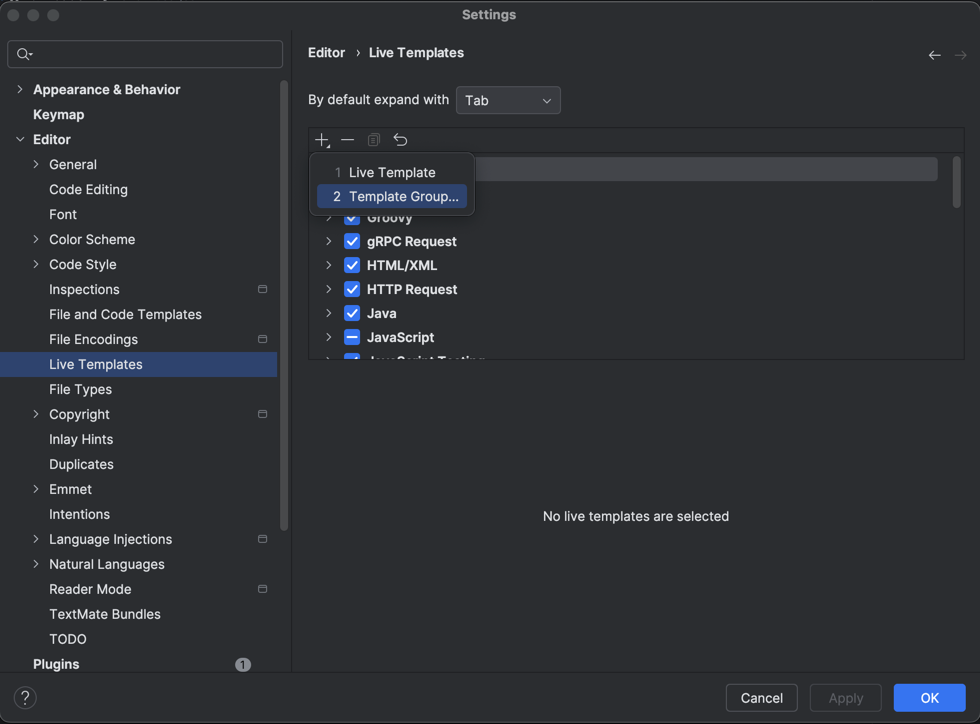
JetBrains tools can define live templates which could be used to generate some specific code fragments.
TODO
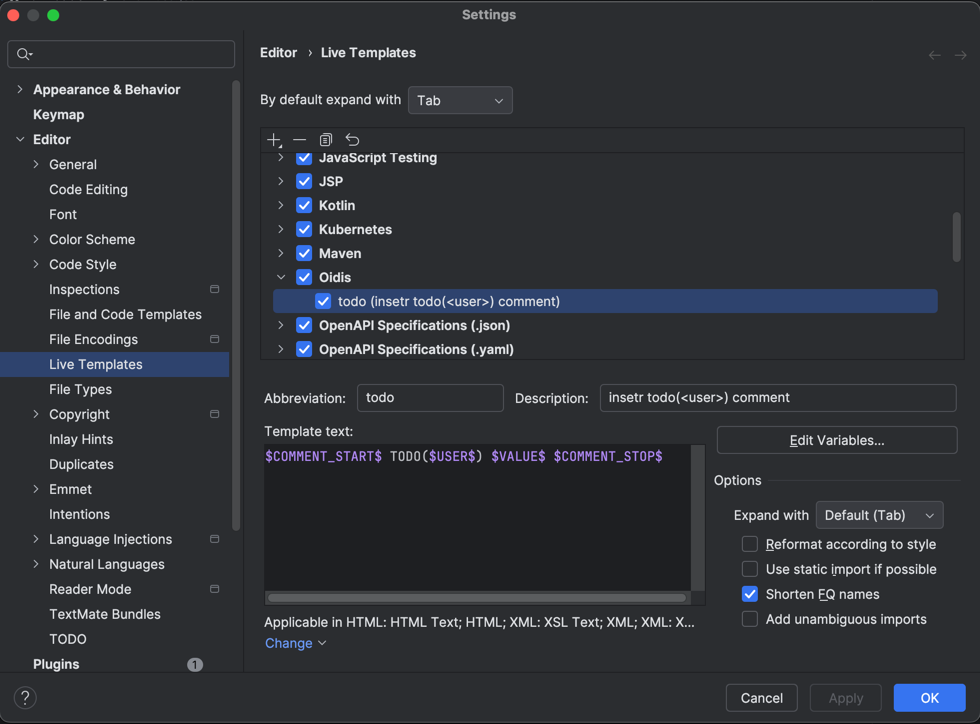
We are using a standardized format for TODOs stings. Create todo template inside the Oidis templates group accordingly.
This todo template works properly with any type of source file.
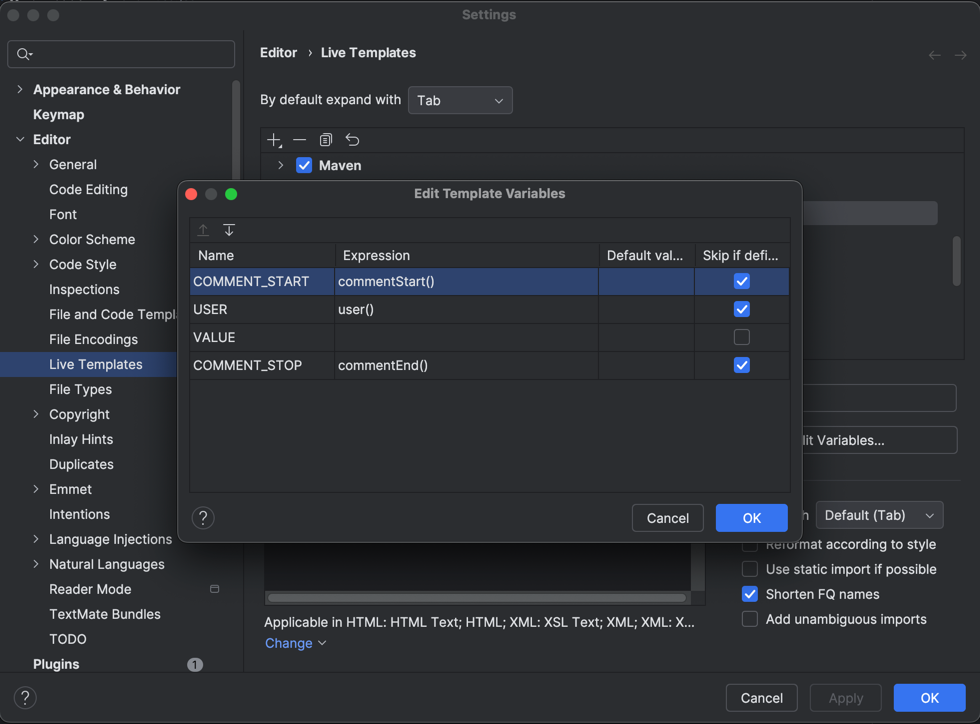
And remember to properly set variables.
Another IDE
You may use some other IDE like Visual Studio, Eclipse, or any other. Keep in mind that the Oidis Framework is composed of several languages which must be supported by the target IDE. The main languages which must be supported by the chosen IDE are:
- TypeScript
- SASS
- HTML
- CSS
- JavaScript
- PHP
- C++
- JAVA
See also: Installation Guide | Coding Standards